Adopting Liquid Glass Before iOS 27
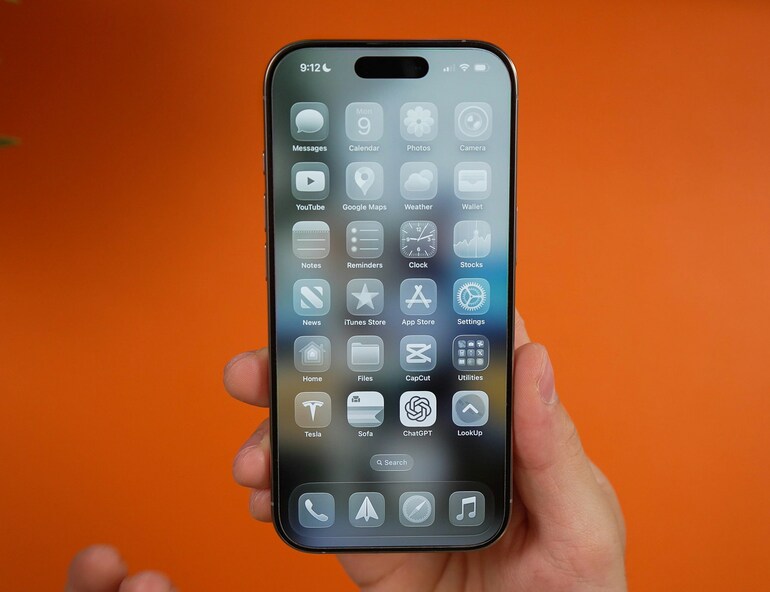
WWDC26 runs from June 8-12, when Apple is expected to preview the next major versions of its platforms. If Apple follows its usual release cycle, iOS 27 will likely arrive in September 2026. For existing iOS apps, this is a good time to review any unfinished iOS 26 Liquid Glass adoption and avoid carrying UI compatibility issues into the next iOS release cycle.
Liquid Glass is more than a visual refresh. It changes how controls, navigation, toolbars, sheets, and content layers relate to each other. Standard SwiftUI components may pick up the new appearance automatically when built with the newer SDK, but custom UI still needs deliberate review.
The risk is in the custom UI: buttons, floating controls, toolbar layouts, bottom bars, overlays, and older material or blur treatments. These areas can still compile perfectly while feeling visually dated, harder to read, or inconsistent with the rest of iOS.
Moving Off Compatibility Mode
UIDesignRequiresCompatibility made sense when iOS 26 was new. It gave teams a way to keep shipping while Liquid Glass issues were being found and fixed.
But Apple described it as temporary. Now, almost a year later, with iOS 27 and Xcode 27 approaching, it would be risky to assume compatibility mode will remain available for much longer.
App icons are part of the migration
Liquid Glass affects app identity as well as in-app UI. Apple’s current app icon guidance is built around layers, system-rendered effects, and appearance variants such as default, dark, clear, and tinted.
For existing apps, this means the icon needs design review to match the platform. A flat icon with baked-in shadows or fixed highlights may look dated beside updated system icons and apps.
Apple's Icon Composer is the key tool here. Apple describes it as a way to create a single multilayer icon file, refine Liquid Glass properties, and preview platform and appearance variants. To use the new icon, just save the Icon Composer file and add the file to the Xcode project. If you add an Icon Composer file to the project, Xcode uses it instead of the existing AppIcon asset catalog for the app icon.
SwiftUI APIs that matter
The following examples are iOS 26+ SwiftUI examples. If an app supports earlier iOS versions, wrap iOS 26-only API usage with availability checks.
Use system glass button styles
For buttons, prefer SwiftUI’s system styles before building custom glass-looking controls.
if #available(iOS 26.0, *) {

    VStack(spacing: 12) {

        Button("Filter") {

            // Show filters

        }

        .buttonStyle(.glass)
    Button("Continue") {
        // Primary action
    }
    .buttonStyle(.glassProminent)
}

}
Use .glass for standard actions and .glassProminent when the button is the main action in that context. This keeps behaviour and visual treatment aligned with the system.

Add Glass to Custom Views
For selected custom controls, .glassEffect(_:in:) applies Liquid Glass directly. The Glass value configures the effect, and the shape passed to in: matters.
if #available(iOS 26.0, *) {

    Label("Refresh", systemImage: "arrow.clockwise")

        .padding()

        .labelStyle(.iconOnly)

        .glassEffect(

            .regular.tint(.green).interactive(),

            in: .circle

        )

}
This is useful for a small floating control or a compact action. Do not turn every card, list row, and panel into glass. Glass should support hierarchy, not compete with content.

Group related glass elements
When multiple glass elements sit close together, use GlassEffectContainer. It helps SwiftUI render related glass shapes together and lets them interact more naturally.
if #available(iOS 26.0, *) {

    GlassEffectContainer(spacing: 12) {

        HStack(spacing: 12) {

            Button("Filter", systemImage: "line.3.horizontal.decrease") {}

                .buttonStyle(.glassProminent)
        Button("Sort", systemImage: "arrow.up.arrow.down") {}
            .buttonStyle(.glass)
    }
}

}
Use GlassEffectContainer when you are designing a small cluster of custom glass controls, not as a wrapper around whole screens.
With GlassEffectContainer:

Without GlassEffectContainer:

Control shared toolbar backgrounds
In iOS 26+, toolbar items can receive a shared glass background in certain contexts. .sharedBackgroundVisibility(_:) lets us control whether an item participates in that shared background.
.toolbar {

    ToolbarItem(placement: .topBarTrailing) {

        Image(systemName: "person.crop.circle")

            .resizable()

            .scaledToFit()

            .frame(width: 40, height: 40)

    }

    .sharedBackgroundVisibility(.hidden)
ToolbarItem(placement: .primaryAction) {
    Button("Add", systemImage: "plus") {
        // Add item
    }
}

}
This is useful when a status view, avatar, or custom badge should sit outside the grouped glass treatment.

Keep advanced APIs for advanced problems
Apple also documents GlassEffectTransition, .glassEffectID(_:in:), and .glassEffectUnion(id:namespace:). These are useful when building more sophisticated transitions or combining glass shapes across dynamic layouts.
Most migrations should not start there. Start with standard controls, toolbar grouping, custom button systems, and accessibility.
The real migration work
Adopting Liquid Glass is not about making every surface look like glass. The important work is deciding which parts of the app should use standard system components, which parts should stay focused on content, and where old custom styling is now getting in the way.
For most teams, the best migration path is straightforward: build with the latest SDK, remove custom backgrounds from navigation and controls where the system already does the right thing, update app icons, and review the custom UI that sits outside standard SwiftUI components. Floating buttons, bottom bars, toolbars, overlays, and old blur or material treatments deserve the most attention.
Compatibility mode already bought teams time. It was useful while iOS 26 was new and apps needed a way to keep shipping during UI review. Apple described it as temporary, and many iOS developers expect it may disappear as soon as iOS 27. Whether that happens this year or later, it should be treated as something to remove, not something to carry into the next release cycle.
Further reading
Apple’s own guidance is the best place to start:
- Adopting Liquid Glass
- Liquid Glass overview
- Applying Liquid Glass to custom views
- Creating your app icon using Icon Composer
- UIDesignRequiresCompatibility
For the design background, these WWDC sessions are worth watching:
Main photo by Daniel Romero on Unsplash